

Menu Reference
Complete reference for menu item types and properties.
Wails provides unified system tray APIs that work across all platforms. Create tray icons with menus, attach windows, and handle clicks with native platform behaviour for background applications, services, and quick-access utilities.
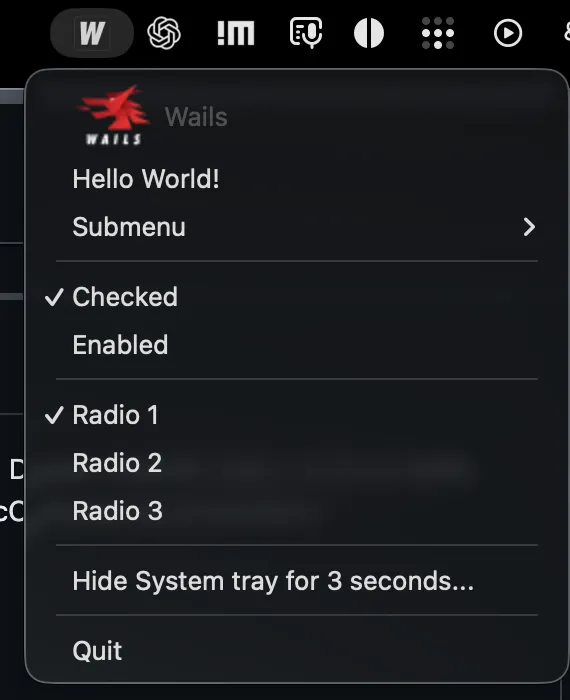
On macOS, a Wails system tray item appears in the menu bar and opens a native menu. The example includes disabled, checkbox, radio, submenu, and action items.
package main
import (    _ "embed"    "github.com/wailsapp/wails/v3/pkg/application")
//go:embed assets/icon.pngvar icon []byte
func main() {    app := application.New(application.Options{        Name: "Tray App",    })
    // Create system tray    systray := app.SystemTray.New()    systray.SetIcon(icon)    systray.SetLabel("My App")
    // Add menu    menu := app.NewMenu()    menu.Add("Show").OnClick(func(ctx *application.Context) {        // Show main window    })    menu.Add("Quit").OnClick(func(ctx *application.Context) {        app.Quit()    })    systray.SetMenu(menu)
    // Create hidden window    window := app.Window.New()    window.Hide()
    app.Run()}
Result: System tray icon with menu on all platforms.
// Create system traysystray := app.SystemTray.New()
// Set iconsystray.SetIcon(iconBytes)
// Set label (macOS) / tooltip (Windows)systray.SetLabel("My Application")Icons should be embedded:
import _ "embed"
//go:embed assets/icon.pngvar icon []byte
//go:embed assets/icon-dark.pngvar iconDark []byte
func main() {    app := application.New(application.Options{        Name: "My App",    })
    systray := app.SystemTray.New()    systray.SetIcon(icon)    systray.SetDarkModeIcon(iconDark)  // macOS dark mode
    app.Run()}
Icon requirements:
| Platform | Size | Format | Notes |
|---|---|---|---|
| Windows | 16x16 or 32x32 | PNG, ICO | Notification area |
| macOS | 18x18 to 22x22 | PNG | Menu bar, template recommended |
| Linux | 22x22 to 48x48 | PNG, SVG | Varies by DE |
Template icons adapt to light/dark mode automatically:
systray.SetTemplateIcon(iconBytes)Template icon guidelines:
Template suffix: iconTemplate.pngSystem tray menus work like application menus:
menu := app.NewMenu()
// Add itemsmenu.Add("Open").OnClick(func(ctx *application.Context) {    showMainWindow()})
menu.AddSeparator()
menu.AddCheckbox("Start at Login", false).OnClick(func(ctx *application.Context) {    enabled := ctx.ClickedMenuItem().Checked()    setStartAtLogin(enabled)})
menu.AddSeparator()
menu.Add("Quit").OnClick(func(ctx *application.Context) {    app.Quit()})
// Set menusystray.SetMenu(menu)
For all menu item types, see Menu Reference.
Attach a window to the tray icon for automatic show/hide:
// Create windowwindow := app.Window.New()
// Attach to traysystray.AttachWindow(window)
// Configure behaviour — these are setters that return the receiver for chaining.systray.WindowOffset(10)                          // Pixels from tray iconsystray.WindowDebounce(200 * time.Millisecond)    // Click debounce
Behaviour:
Example: Popup window
window := app.Window.NewWithOptions(application.WebviewWindowOptions{    Title:           "Quick Access",    Width:           300,    Height:          400,    Frameless:       true, // No title bar    AlwaysOnTop:     true, // Stay on top    HideOnFocusLost: true, // Dismiss when another window receives focus    HideOnEscape:    true, // Dismiss when the user presses Escape})
systray.AttachWindow(window)systray.WindowOffset(5)
HideOnFocusLost is useful for tray popups on Windows, macOS, and
click-to-focus Linux desktops. Wails disables that behaviour on Linux
focus-follows-mouse environments (including common Hyprland, Sway, and i3
setups), where leaving the popup could otherwise hide it before it can be used.
HideOnEscape remains available in those environments.
The left- and right-click behaviours above are smart defaults. An explicit
OnClick or OnRightClick handler replaces the corresponding default. For
platform checks and edge cases, see the
manual systray suite
and the systray stress example.
Handle tray icon clicks:
systray := app.SystemTray.New()
// Left clicksystray.OnClick(func() {    fmt.Println("Tray icon clicked")})
// Right clicksystray.OnRightClick(func() {    fmt.Println("Tray icon right-clicked")})
// Double clicksystray.OnDoubleClick(func() {    fmt.Println("Tray icon double-clicked")})
// Mouse enter/leavesystray.OnMouseEnter(func() {    fmt.Println("Mouse entered tray icon")})
systray.OnMouseLeave(func() {    fmt.Println("Mouse left tray icon")})
Platform support:
| Event | Windows | macOS | Linux |
|---|---|---|---|
| OnClick | ✅ | ✅ | ✅ |
| OnRightClick | ✅ | ✅ | ✅ |
| OnDoubleClick | ✅ | ✅ | ⚠️ Varies |
| OnMouseEnter | ✅ | ✅ | ⚠️ Varies |
| OnMouseLeave | ✅ | ✅ | ⚠️ Varies |
Update tray icon and menu dynamically:
var isActive bool
func updateTrayIcon() { if isActive { systray.SetIcon(activeIcon) systray.SetLabel("Active") } else { systray.SetIcon(inactiveIcon) systray.SetLabel("Inactive") }}var isPaused bool
pauseMenuItem := menu.Add("Pause")
pauseMenuItem.OnClick(func(ctx *application.Context) { isPaused = !isPaused
if isPaused { pauseMenuItem.SetLabel("Resume") } else { pauseMenuItem.SetLabel("Pause") }
menu.Update() // Important!})For major changes, rebuild the entire menu:
func rebuildTrayMenu(status string) {    menu := app.NewMenu()
    // Status-specific items    switch status {    case "syncing":        menu.Add("Syncing...").SetEnabled(false)        menu.Add("Pause Sync").OnClick(pauseSync)    case "synced":        menu.Add("Up to date ✓").SetEnabled(false)        menu.Add("Sync Now").OnClick(startSync)    case "error":        menu.Add("Sync Error").SetEnabled(false)        menu.Add("Retry").OnClick(retrySync)    }
    menu.AddSeparator()    menu.Add("Quit").OnClick(func(ctx *application.Context) {        app.Quit()    })
systray.SetMenu(menu)}Menu bar integration:
// Set label (appears next to icon)systray.SetLabel("My App")
// Use template icon (adapts to dark mode)systray.SetTemplateIcon(iconBytes)
// Set icon position — uses AppKit NSImage placement constants.systray.SetIconPosition(application.NSImageRight)
Icon positions (mirroring NSImagePosition):
application.NSImageLeft - Icon left of label.application.NSImageRight - Icon right of label.application.NSImageOnly - Icon only, no label.application.NSImageNone - Label only, no icon.Best practices:
Notification area integration:
// Set tooltip (appears on hover)systray.SetTooltip("My Application")
// Or use SetLabel (same as tooltip on Windows)systray.SetLabel("My Application")
// Show/Hide functionality (fully functional)systray.Show()  // Show tray iconsystray.Hide()  // Hide tray icon
Icon requirements:
Tooltip limits:
Platform features:
Best practices:
System tray integration:
Uses StatusNotifierItem specification (most modern DEs).
systray.SetIcon(iconBytes)systray.SetLabel("My App")Desktop environment support:
Best practices:
Here’s a production-ready system tray application:
package main
import (    _ "embed"    "fmt"    "time"    "github.com/wailsapp/wails/v3/pkg/application")
//go:embed assets/icon.pngvar icon []byte
//go:embed assets/icon-active.pngvar iconActive []byte
type TrayApp struct {    app     *application.App    systray *application.SystemTray    window  *application.WebviewWindow    menu    *application.Menu    isActive bool}
func main() {    app := application.New(application.Options{        Name: "Tray Application",        Mac: application.MacOptions{            ApplicationShouldTerminateAfterLastWindowClosed: false,        },    })
    trayApp := &TrayApp{app: app}    trayApp.setup()
    app.Run()}
func (t *TrayApp) setup() {    // Create system tray    t.systray = t.app.SystemTray.New()    t.systray.SetIcon(icon)    t.systray.SetLabel("Inactive")
    // Create menu    t.createMenu()
    // Create window (hidden by default)    t.window = t.app.Window.NewWithOptions(application.WebviewWindowOptions{        Title:  "Tray Application",        Width:  400,        Height: 600,        Hidden: true,    })
    // Attach window to tray    t.systray.AttachWindow(t.window)    t.systray.WindowOffset(10)
    // Handle tray clicks    t.systray.OnRightClick(func() {        t.systray.OpenMenu()    })
    // Start background task    go t.backgroundTask()}
func (t *TrayApp) createMenu() {    t.menu = t.app.NewMenu()
    // Status item (disabled)    statusItem := t.menu.Add("Status: Inactive")    statusItem.SetEnabled(false)
    t.menu.AddSeparator()
    // Toggle active    t.menu.Add("Start").OnClick(func(ctx *application.Context) {        t.toggleActive()    })
    // Show window    t.menu.Add("Show Window").OnClick(func(ctx *application.Context) {        t.window.Show()        t.window.Focus()    })
    t.menu.AddSeparator()
    // Settings    t.menu.AddCheckbox("Start at Login", false).OnClick(func(ctx *application.Context) {        enabled := ctx.ClickedMenuItem().Checked()        t.setStartAtLogin(enabled)    })
    t.menu.AddSeparator()
    // Quit    t.menu.Add("Quit").OnClick(func(ctx *application.Context) {        t.app.Quit()    })
    t.systray.SetMenu(t.menu)}
func (t *TrayApp) toggleActive() {    t.isActive = !t.isActive    t.updateTray()}
func (t *TrayApp) updateTray() {    if t.isActive {        t.systray.SetIcon(iconActive)        t.systray.SetLabel("Active")    } else {        t.systray.SetIcon(icon)        t.systray.SetLabel("Inactive")    }
    // Rebuild menu with new status    t.createMenu()}
func (t *TrayApp) backgroundTask() {    ticker := time.NewTicker(5 * time.Second)    defer ticker.Stop()
    for range ticker.C {        if t.isActive {            fmt.Println("Background task running...")            // Do work        }    }}
func (t *TrayApp) setStartAtLogin(enabled bool) { // Implementation varies by platform fmt.Printf("Start at login: %v\n", enabled)}Show/hide the tray icon dynamically:
// Hide tray iconsystray.Hide()
// Show tray iconsystray.Show()
There is no IsVisible() getter — track visibility in your own application state if you need it.
Platform Support:
| Platform | Hide() | Show() | Notes |
|---|---|---|---|
| Windows | ✅ | ✅ | Fully functional - icon appears/disappears from notification area |
| macOS | ✅ | ✅ | Menu bar item shows/hides |
| Linux | ✅ | ✅ | Varies by desktop environment |
Use cases:
Example - Conditional Tray Visibility:
func (t *TrayApp) setTrayVisibility(visible bool) {    if visible {        t.systray.Show()    } else {        t.systray.Hide()    }}
// Show tray only when updates are availablefunc (t *TrayApp) checkForUpdates() { if hasUpdates { t.systray.Show() t.systray.SetLabel("Update Available") } else { t.systray.Hide() }}Destroy the tray icon when done:
// In OnShutdownapp := application.New(application.Options{ OnShutdown: func() { if systray != nil { systray.Destroy() } },})Important: Always destroy system tray on shutdown to release resources.
Possible causes:
Solution:
There is no SystemTraySupported() helper; instead create the tray, check the platform, and degrade gracefully:
// Probe support: on Linux without a notification-area extension, the tray// will simply not appear. Defensive code can fall back to window-only mode// based on runtime.GOOS or after a short timeout if no tray events arrive.systray := app.SystemTray.New()systray.SetIcon(iconBytes)Cause: Not using template icon
Solution:
// Use template iconsystray.SetTemplateIcon(iconBytes)
// Or design icon as template (black + transparent)Cause: Forgot to call menu.Update()
Solution:
menuItem.SetLabel("New Label")menu.Update() // Add this!Menu Reference
Complete reference for menu item types and properties.
Application Menus
Create application menu bars.
Context Menus
Create right-click context menus.
System Tray Example
Explore a complete system tray application.
Questions? Ask in Discord or check the system tray examples.