

파일 드롭
운영 체제에서 애플리케이션으로 드래그한 파일을 받습니다
Wails를 사용하면 사용자가 운영 체제(파일 관리자, 데스크톱)에서 애플리케이션으로 파일을 드래그할 수 있습니다. 브라우저 내에서만 작동하는 HTML5 드래그 앤 드롭과 달리, 이 기능을 사용하면 디스크에 있는 실제 파일 경로에 접근할 수 있습니다.
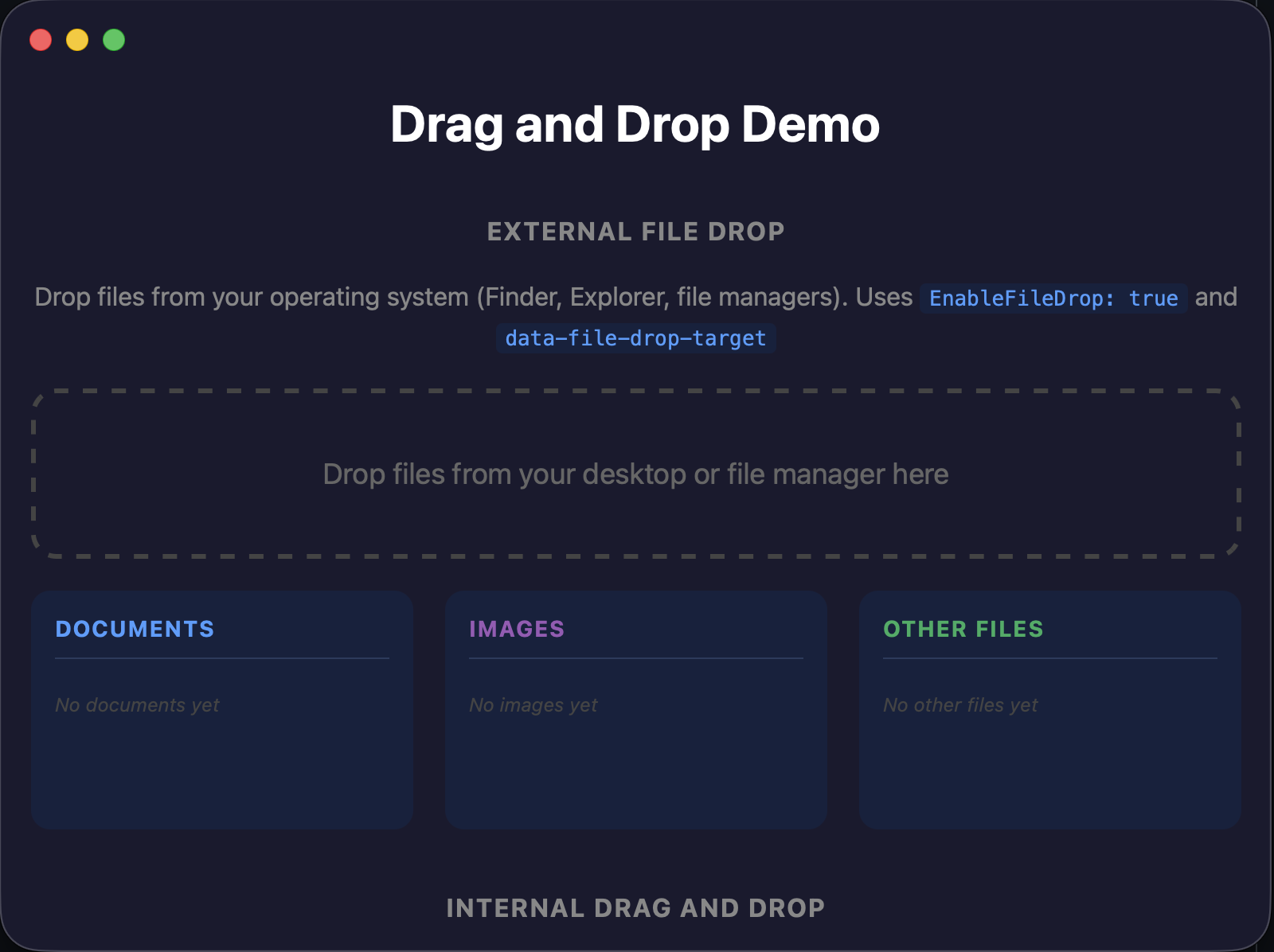
외부 드롭 영역은 웹뷰의 일부이며, Wails는 운영 체제의 네이티브 파일 드롭 이벤트를 제공합니다.
파일 드롭 활성화
파일 드롭은 기본적으로 비활성화되어 있습니다. 활성화하려면 창 옵션에서 EnableFileDrop: true을 설정하세요:
window := app.Window.NewWithOptions(application.WebviewWindowOptions{
    Title:          "My App",
    Width:          800,
    Height:         600,
    EnableFileDrop: true,
})EnableFileDrop이 false(기본값)이면 OS에서 드래그한 파일이 차단되므로 웹뷰에서 열리지 않고 어떤 이벤트도 발생시키지 않습니다. 이렇게 하면 사용자가 애플리케이션 위로 파일을 드래그할 때 의도치 않게 페이지가 이동하는 것을 방지할 수 있습니다.
드롭 영역 정의
드롭 영역은 파일을 받을 요소를 Wails에 알려 줍니다. 드롭 영역 밖에 놓은 파일은 무시됩니다.
원하는 요소에 data-file-drop-target 특성을 추가하세요:
<div id="upload" class="drop-zone" data-file-drop-target>
    Drop files here
</div>
드롭 영역을 여러 개 둘 수 있습니다. 요소의 id과 CSS 클래스가 Go 코드로 전달되므로, 파일이 놓인 위치에 따라 드롭을 다르게 처리할 수 있습니다.
드래그 호버 스타일 지정
파일을 드롭 영역 위로 드래그하면 Wails가 file-drop-target-active 클래스를 추가합니다. 이를 사용해 사용자가 파일을 놓을 수 있는 위치를 알 수 있도록 시각적 피드백을 제공할 수 있습니다:
.drop-zone {
    border: 2px dashed #ccc;
    padding: 40px;
    text-align: center;
    transition: all 0.2s ease;
}

.drop-zone.file-drop-target-active {
    border-color: #007bff;
    background-color: rgba(0, 123, 255, 0.1);
}
파일이 영역을 벗어나거나 놓이면 이 클래스는 자동으로 제거됩니다.
드롭된 파일 감지
유효한 드롭 영역에 파일을 놓으면 Wails가 WindowFilesDropped 이벤트를 발생시킵니다. 이벤트 컨텍스트에는 드롭된 모든 파일의 전체 파일 시스템 경로가 들어 있습니다:
import "github.com/wailsapp/wails/v3/pkg/events"

window.OnWindowEvent(events.Common.WindowFilesDropped, func(event *application.WindowEvent) {
    files := event.Context().DroppedFiles()

    for _, file := range files {
        fmt.Println("Dropped:", file)
    }
})
경로는 /home/user/documents/report.pdf 또는 C:\Users\Name\Documents\report.pdf처럼 절대 경로입니다.
드롭 대상 정보 가져오기
드롭 영역이 여러 개인 경우 DropTargetDetails()을 사용하여 어느 영역이 파일을 받았는지 확인할 수 있습니다:
window.OnWindowEvent(events.Common.WindowFilesDropped, func(event *application.WindowEvent) {
    files := event.Context().DroppedFiles()
    details := event.Context().DropTargetDetails()

    fmt.Printf("Dropped on element: id=%s, classes=%v\n",
        details.ElementID, details.ClassList)
    fmt.Printf("Position: x=%d, y=%d\n", details.X, details.Y)
})
이를 통해 파일을 서로 다른 핸들러로 전달할 수 있습니다:
switch details.ElementID {
case "images":
    handleImageUpload(files)
case "documents":
    handleDocumentUpload(files)
}
전체 예제
Go:
window := app.Window.NewWithOptions(application.WebviewWindowOptions{
    Title:          "File Uploader",
    EnableFileDrop: true,
})

window.OnWindowEvent(events.Common.WindowFilesDropped, func(event *application.WindowEvent) {
    files := event.Context().DroppedFiles()
    details := event.Context().DropTargetDetails()

    // Send to frontend
    app.Event.Emit("files-dropped", map[string]any{
        "files":   files,
        "target":  details.ElementID,
    })
})
HTML:
<div id="images" class="drop-zone" data-file-drop-target>
    Drop images here
</div>

<div id="documents" class="drop-zone" data-file-drop-target>
    Drop documents here
</div>

<style>
    .drop-zone {
        border: 2px dashed #ccc;
        border-radius: 8px;
        padding: 40px;
        text-align: center;
        margin: 20px;
        transition: all 0.2s ease;
    }

    .drop-zone.file-drop-target-active {
        border-color: #007bff;
        background-color: rgba(0, 123, 255, 0.1);
    }
</style>
전체 창에서 드롭
애플리케이션 어디에서나 파일을 놓을 수 있게 하려면 body 요소에 이 특성을 추가하세요:
<body data-file-drop-target>
    <!-- Your app content -->
</body>
CSS 오버레이를 사용하여 창 전체가 드롭 대상임을 나타낼 수 있습니다:
body.file-drop-target-active::after {
    content: "Drop files anywhere";
    position: fixed;
    inset: 0;
    display: flex;
    align-items: center;
    justify-content: center;
    font-size: 24px;
    color: #007bff;
    background: rgba(255, 255, 255, 0.9);
    pointer-events: none;
}
HTML 드래그 앤 드롭과 함께 사용
같은 애플리케이션에서 외부 파일 드롭과 내부 HTML 드래그 앤 드롭을 모두 사용할 수 있습니다. EnableFileDrop이 true이면 Wails는 외부 파일 드래그를 가로채지만, 내부 HTML5 드래그는 평소처럼 통과시킵니다.
HTML 드롭 영역 핸들러에서 두 작업을 구분하려면 드래그에 파일이 포함되어 있는지 확인하세요:
zone.addEventListener('dragenter', (e) => {
    // Skip external file drags - Wails handles these
    if (e.dataTransfer?.types.includes('Files')) {
        return;
    }
    // Handle internal HTML5 drags
    zone.classList.add('drag-over');
});

zone.addEventListener('drop', (e) => {
    // Skip external file drops - Wails handles these
    if (e.dataTransfer?.types.includes('Files')) {
        return;
    }
    e.preventDefault();
    zone.classList.remove('drag-over');
    // Handle internal drop
});
이렇게 하면 HTML 드롭 핸들러는 목록 항목 이동과 같은 내부 드래그에만 응답하고, Wails는 WindowFilesDropped 이벤트를 통해 외부 파일 드롭을 별도로 처리합니다.
다음 단계
- HTML 드래그 앤 드롭 - 애플리케이션 내에서 요소 드래그하기
- 창 옵션 - 모든 창 구성 옵션