

Catatan
Buat aplikasi catatan dengan operasi file dan dialog native
Dalam tutorial ini, Anda akan membuat aplikasi catatan yang mendemonstrasikan operasi file, dialog native, dan pola aplikasi desktop modern menggunakan Wails v3.
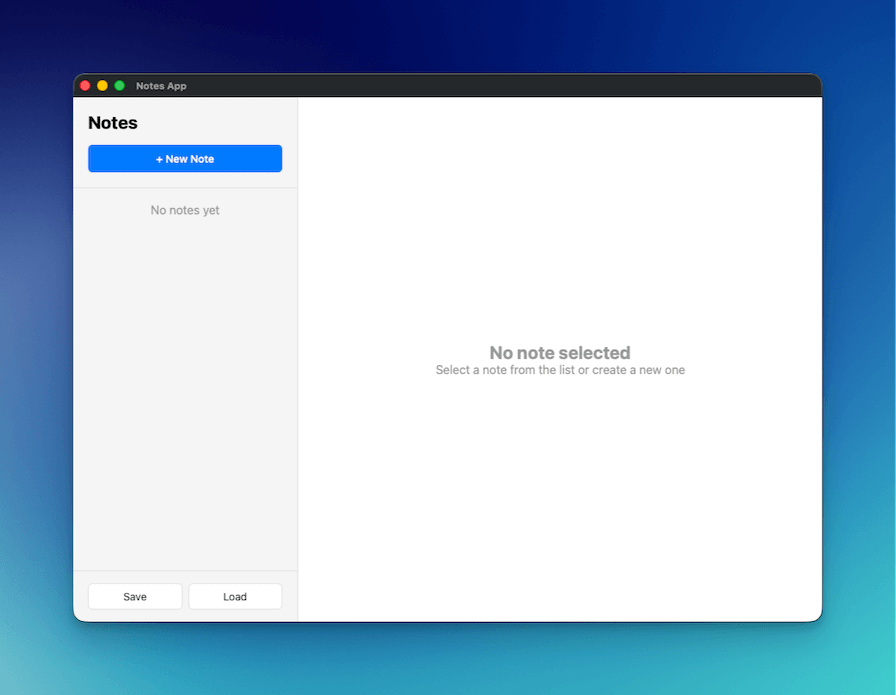
Yang Akan Anda Buat
- Aplikasi catatan lengkap dengan fungsi untuk membuat, mengedit, dan menghapus catatan
- Dialog native untuk menyimpan/membuka file guna mengimpor dan mengekspor catatan
- Penyimpanan otomatis saat mengetik dengan debounce untuk mengurangi pembaruan yang tidak perlu
- Tata letak dua kolom profesional (bilah samping + editor) yang menyerupai Apple Notes
Yang Akan Anda Pelajari
- Menggunakan dialog file native di Wails (
SaveFileDialog,OpenFileDialog,InfoDialog) - Menggunakan file JSON untuk persistensi data
- Menerapkan pola penyimpanan otomatis dengan debounce
- Membuat antarmuka pengguna desktop profesional dengan CSS modern
- Serialisasi JSON yang tepat untuk struct Go
Penyiapan Proyek
Buat proyek Wails baru
wails3 init -n notes-app -t vanilla
cd notes-app
Buat NotesService
Buat file baru notesservice.go di direktori root proyek:
package main
import (
"encoding/json"
"errors"
"os"
"time"
"github.com/wailsapp/wails/v3/pkg/application"
)
type Note struct {
ID string `json:"id"`
Title string `json:"title"`
Content string `json:"content"`
CreatedAt time.Time `json:"createdAt"`
UpdatedAt time.Time `json:"updatedAt"`
}
type NotesService struct {
notes []Note
}
func NewNotesService() *NotesService {
return &NotesService{
notes: make([]Note, 0),
}
}
// GetAll returns all notes
func (n *NotesService) GetAll() []Note {
return n.notes
}
// Create creates a new note
func (n *NotesService) Create(title, content string) Note {
note := Note{
ID: generateID(),
Title: title,
Content: content,
CreatedAt: time.Now(),
UpdatedAt: time.Now(),
}
n.notes = append(n.notes, note)
return note
}
// Update updates an existing note
func (n *NotesService) Update(id, title, content string) error {
for i := range n.notes {
if n.notes[i].ID == id {
n.notes[i].Title = title
n.notes[i].Content = content
n.notes[i].UpdatedAt = time.Now()
return nil
}
}
return errors.New("note not found")
}
// Delete deletes a note
func (n *NotesService) Delete(id string) error {
for i := range n.notes {
if n.notes[i].ID == id {
n.notes = append(n.notes[:i], n.notes[i+1:]...)
return nil
}
}
return errors.New("note not found")
}
// SaveToFile saves notes to a file
func (n *NotesService) SaveToFile() error {
path, err := application.Get().Dialog.SaveFile().
SetFilename("notes.json").
AddFilter("JSON Files", "*.json").
PromptForSingleSelection()
if err != nil {
return err
}
data, err := json.MarshalIndent(n.notes, "", " ")
if err != nil {
return err
}
if err := os.WriteFile(path, data, 0644); err != nil {
return err
}
application.Get().Dialog.Info().
SetTitle("Success").
SetMessage("Notes saved successfully!").
Show()
return nil
}
// LoadFromFile loads notes from a file
func (n *NotesService) LoadFromFile() error {
path, err := application.Get().Dialog.OpenFile().
AddFilter("JSON Files", "*.json").
PromptForSingleSelection()
if err != nil {
return err
}
data, err := os.ReadFile(path)
if err != nil {
return err
}
var notes []Note
if err := json.Unmarshal(data, ¬es); err != nil {
return err
}
n.notes = notes
application.Get().Dialog.Info().
SetTitle("Success").
SetMessage("Notes loaded successfully!").
Show()
return nil
}
func generateID() string {
return time.Now().Format("20060102150405")
}Yang terjadi di sini:
- Struct Note: Menentukan struktur data dengan tag JSON (huruf kecil) agar serialisasi dilakukan dengan benar
- Operasi CRUD: GetAll, Create, Update, dan Delete untuk mengelola catatan dalam memori
- Dialog file: Menggunakan
application.Get().Dialog.SaveFile()danapplication.Get().Dialog.OpenFile()untuk mengakses dialog native - Dialog informasi: Menampilkan pesan keberhasilan menggunakan
application.Get().Dialog.Info() - Pembuatan ID: Generator ID sederhana berbasis stempel waktu
Perbarui main.go
Ganti isi main.go:
package main

import (
	"embed"
	_ "embed"
	"log"

	"github.com/wailsapp/wails/v3/pkg/application"
)

//go:embed all:frontend/dist
var assets embed.FS

func main() {
	app := application.New(application.Options{
		Name:        "Notes App",
		Description: "A simple notes application",
		Services: []application.Service{
			application.NewService(NewNotesService()),
		},
		Assets: application.AssetOptions{
			Handler: application.AssetFileServerFS(assets),
		},
		Mac: application.MacOptions{
			ApplicationShouldTerminateAfterLastWindowClosed: true,
		},
	})

	app.Window.NewWithOptions(application.WebviewWindowOptions{
		Title:            "Notes App",
		Width:            1000,
		Height:           700,
		BackgroundColour: application.NewRGB(255, 255, 255),
		URL:              "/",
	})

	err := app.Run()
	if err != nil {
		log.Fatal(err)
	}
}
Yang terjadi di sini:
- Mendaftarkan
NotesServiceke aplikasi - Membuat jendela berdimensi (1000x700) yang menyerupai Apple Notes
- Menyiapkan perilaku macOS yang tepat agar aplikasi berhenti ketika jendela terakhir ditutup
Buat struktur HTML
Ganti frontend/index.html:
<!DOCTYPE html>
<html lang="en">
<head>
    <meta charset="UTF-8">
    <meta name="viewport" content="width=device-width, initial-scale=1.0">
    <title>Notes App</title>
    <link rel="stylesheet" href="./style.css">
</head>
<body>
    <div class="app">
        <!-- Sidebar -->
        <div class="sidebar">
            <div class="sidebar-header">
                <h1>Notes</h1>
                <button id="new-note-btn" class="btn-primary">+ New Note</button>
            </div>
            <div id="notes-list" class="notes-list"></div>
            <div class="sidebar-footer">
                <button id="save-btn" class="btn-secondary">Save</button>
                <button id="load-btn" class="btn-secondary">Load</button>
            </div>
        </div>

        <!-- Editor -->
        <div class="editor">
            <div id="empty-state" class="empty-state">
                <h2>No note selected</h2>
                <p>Select a note from the list or create a new one</p>
            </div>
            <div id="note-editor" class="note-editor" style="display: none;">
                <input type="text" id="note-title" placeholder="Note title" class="title-input">
                <textarea id="note-content" placeholder="Start typing..." class="content-input"></textarea>
                <div class="editor-footer">
                    <button id="delete-btn" class="btn-danger">Delete</button>
                    <span id="last-updated" class="last-updated"></span>
                </div>
            </div>
        </div>
    </div>

    <script src="/wails/runtime.js"></script>
    <script type="module" src="./src/main.js"></script>
</body>
</html>
Yang terjadi di sini:
- Tata letak dua kolom: Bilah samping untuk daftar catatan dan area utama untuk editor
- Status kosong: Ditampilkan saat tidak ada catatan yang dipilih
- Runtime Wails: Harus dimuat sebelum skrip modul
Tambahkan gaya CSS
Ganti frontend/public/style.css:
* {
    margin: 0;
    padding: 0;
    box-sizing: border-box;
}

body {
    font-family: -apple-system, BlinkMacSystemFont, 'Segoe UI', Roboto, sans-serif;
    height: 100vh;
    overflow: hidden;
}

.app {
    display: flex;
    height: 100vh;
}

/* Sidebar */
.sidebar {
    width: 300px;
    background: #f5f5f5;
    border-right: 1px solid #e0e0e0;
    display: flex;
    flex-direction: column;
}

.sidebar-header {
    padding: 20px;
    border-bottom: 1px solid #e0e0e0;
}

.sidebar-header h1 {
    font-size: 24px;
    margin-bottom: 16px;
}

.notes-list {
    flex: 1;
    overflow-y: auto;
}

.note-item {
    padding: 16px 20px;
    border-bottom: 1px solid #e0e0e0;
    cursor: pointer;
    transition: background 0.2s;
}

.note-item:hover {
    background: #e8e8e8;
}

.note-item.active {
    background: #007aff;
    color: white;
}

.note-item h3 {
    font-size: 16px;
    margin-bottom: 4px;
}

.note-item p {
    font-size: 14px;
    opacity: 0.7;
    white-space: nowrap;
    overflow: hidden;
    text-overflow: ellipsis;
}

.sidebar-footer {
    padding: 16px 20px;
    border-top: 1px solid #e0e0e0;
    display: flex;
    gap: 8px;
}

/* Editor */
.editor {
    flex: 1;
    display: flex;
    flex-direction: column;
}

.empty-state {
    flex: 1;
    display: flex;
    flex-direction: column;
    align-items: center;
    justify-content: center;
    color: #999;
}

.note-editor {
    flex: 1;
    display: flex;
    flex-direction: column;
    padding: 20px;
}

.title-input {
    font-size: 32px;
    font-weight: bold;
    border: none;
    outline: none;
    margin-bottom: 16px;
    padding: 8px 0;
}

.content-input {
    flex: 1;
    font-size: 16px;
    border: none;
    outline: none;
    resize: none;
    font-family: inherit;
    line-height: 1.6;
}

.editor-footer {
    display: flex;
    justify-content: space-between;
    align-items: center;
    padding-top: 16px;
    border-top: 1px solid #e0e0e0;
}

.last-updated {
    font-size: 14px;
    color: #999;
}

/* Buttons */
.btn-primary {
    background: #007aff;
    color: white;
    border: none;
    padding: 10px 20px;
    border-radius: 6px;
    cursor: pointer;
    font-size: 14px;
    font-weight: 500;
    width: 100%;
}

.btn-primary:hover {
    background: #0056b3;
}

.btn-secondary {
    background: white;
    color: #333;
    border: 1px solid #e0e0e0;
    padding: 8px 16px;
    border-radius: 6px;
    cursor: pointer;
    font-size: 14px;
    flex: 1;
}

.btn-secondary:hover {
    background: #f5f5f5;
}

.btn-danger {
    background: #ff3b30;
    color: white;
    border: none;
    padding: 8px 16px;
    border-radius: 6px;
    cursor: pointer;
    font-size: 14px;
}

.btn-danger:hover {
    background: #cc0000;
}
Yang terjadi di sini:
- Desain bergaya Apple dengan tipografi dan warna yang bersih
- Tata letak Flexbox untuk bilah samping dan editor yang responsif
- Sorotan catatan aktif dengan latar belakang biru
- Transisi halus saat penunjuk diarahkan ke elemen
Implementasikan logika JavaScript
Ganti frontend/src/main.js:
import { NotesService } from '../bindings/changeme'

let notes = []
let currentNote = null

// Load notes on startup
async function loadNotes() {
    notes = await NotesService.GetAll()
    renderNotesList()
}

// Render notes list
function renderNotesList() {
    const notesList = document.getElementById('notes-list')

    if (notes.length === 0) {
        notesList.innerHTML = '<div style="padding: 20px; text-align: center; color: #999;">No notes yet</div>'
        return
    }

    notesList.innerHTML = notes.map(note => `
        <div class="note-item ${currentNote?.id === note.id ? 'active' : ''}" data-id="${note.id}">
            <h3>${note.title || 'Untitled'}</h3>
            <p>${note.content || 'No content'}</p>
        </div>
    `).join('')

    // Add click handlers
    document.querySelectorAll('.note-item').forEach(item => {
        item.addEventListener('click', () => {
            const id = item.dataset.id
            selectNote(id)
        })
    })
}

// Select a note
function selectNote(id) {
    currentNote = notes.find(n => n.id === id)
    if (currentNote) {
        document.getElementById('empty-state').style.display = 'none'
        document.getElementById('note-editor').style.display = 'flex'
        document.getElementById('note-title').value = currentNote.title
        document.getElementById('note-content').value = currentNote.content
        document.getElementById('last-updated').textContent =
            `Last updated: ${new Date(currentNote.updatedAt).toLocaleString()}`
        renderNotesList()
    }
}

// Create new note
document.getElementById('new-note-btn').addEventListener('click', async () => {
    const note = await NotesService.Create('Untitled', '')
    notes.push(note)
    selectNote(note.id)
    // Focus the title input and select all text so user can immediately type
    const titleInput = document.getElementById('note-title')
    titleInput.focus()
    titleInput.select()
})

// Update note on input
let updateTimeout
function scheduleUpdate() {
    clearTimeout(updateTimeout)
    updateTimeout = setTimeout(async () => {
        if (currentNote) {
            const title = document.getElementById('note-title').value
            const content = document.getElementById('note-content').value

            await NotesService.Update(currentNote.id, title, content)

            // Update local copy
            const note = notes.find(n => n.id === currentNote.id)
            if (note) {
                note.title = title
                note.content = content
                note.updatedAt = new Date().toISOString()
            }

            renderNotesList()
            document.getElementById('last-updated').textContent =
                `Last updated: ${new Date().toLocaleString()}`
        }
    }, 500)
}

document.getElementById('note-title').addEventListener('input', scheduleUpdate)
document.getElementById('note-content').addEventListener('input', scheduleUpdate)

// Delete note
document.getElementById('delete-btn').addEventListener('click', async () => {
    if (!currentNote) return

    try {
        await NotesService.Delete(currentNote.id)
        notes = notes.filter(n => n.id !== currentNote.id)
        currentNote = null
        document.getElementById('empty-state').style.display = 'flex'
        document.getElementById('note-editor').style.display = 'none'
        renderNotesList()
    } catch (error) {
        console.error('Delete failed:', error)
    }
})

// Save to file
document.getElementById('save-btn').addEventListener('click', async () => {
    try {
        await NotesService.SaveToFile()
    } catch (error) {
        if (error) console.error('Save failed:', error)
    }
})

// Load from file
document.getElementById('load-btn').addEventListener('click', async () => {
    try {
        await NotesService.LoadFromFile()
        notes = await NotesService.GetAll()
        currentNote = null
        document.getElementById('empty-state').style.display = 'flex'
        document.getElementById('note-editor').style.display = 'none'
        renderNotesList()
    } catch (error) {
        if (error) console.error('Load failed:', error)
    }
})

// Initialize
loadNotes()
Yang terjadi di sini:
- Penyimpanan otomatis: Debounce 500 milidetik mencegah panggilan backend yang berlebihan saat mengetik
- Akses properti: Menggunakan nama properti dengan huruf kecil (
.id,.title) yang sesuai dengan tag JSON Go - Pengelolaan fokus: Secara otomatis memfokuskan dan memilih judul saat membuat catatan baru
- Menghapus tanpa konfirmasi:
confirm()milik browser tidak berfungsi di webview Wails - Operasi file: Dialog native menangani penyimpanan/pemuatan dengan penanganan kesalahan yang tepat
Jalankan aplikasi
wails3 dev
Aplikasi akan dimulai dan Anda dapat:
- Klik “+ New Note” untuk membuat catatan
- Edit judul dan isi (disimpan secara otomatis setelah 500 milidetik)
- Klik catatan di bilah samping untuk beralih antarcatatan
- Klik “Delete” untuk menghapus catatan saat ini
- Klik “Save” untuk mengekspor catatan sebagai JSON
- Klik “Load” untuk mengimpor catatan yang sebelumnya disimpan
Konsep Utama
Dialog File dan Pesan
Di Wails v3, tidak ada konstruktor dialog tingkat paket—setiap dialog dibuat melalui pengelola app.Dialog. Dari sebuah service, dapatkan aplikasi melalui application.Get() (fungsi ini mengembalikan *application.App yang sedang berjalan):
// Correct — manager-based dialogs.
app := application.Get()
path, err := app.Dialog.SaveFile().
    SetFilename("notes.json").
    AddFilter("JSON Files", "*.json").
    PromptForSingleSelection()
Metode yang sesuai adalah app.Dialog.Info() / Question() / Warning() / Error() untuk dialog pesan dan app.Dialog.OpenFile() / SaveFile() (beserta varian *WithOptions) untuk dialog file.
Pemetaan Tag JSON
Tag JSON pada struct Go harus menggunakan huruf kecil agar sesuai dengan akses properti JavaScript:
type Note struct {
    ID string `json:"id"` // Must be lowercase
}// JavaScript accesses with lowercase
const noteId = note.id // Correct
const noteId = note.ID // Would be undefinedPenyimpanan Otomatis dengan Debounce
Debounce 500 milidetik mengurangi panggilan backend yang tidak perlu:
let updateTimeout
function scheduleUpdate() {
    clearTimeout(updateTimeout) // Cancel previous timer
    updateTimeout = setTimeout(async () => {
        // Only saves if user stops typing for 500ms
        await NotesService.Update(currentNote.id, title, content)
    }, 500)
}
Langkah Berikutnya
- Tambahkan kategori atau tag untuk mengatur catatan
- Implementasikan pencarian dan pemfilteran
- Tambahkan pengeditan teks kaya dengan editor WYSIWYG
- Sinkronkan catatan ke penyimpanan cloud
- Tambahkan pintasan papan ketik untuk operasi umum