

笔记
构建一个支持文件操作和原生对话框的笔记应用
在本教程中,你将使用 Wails v3 构建一个笔记应用,演示文件操作、原生对话框和现代桌面应用模式。
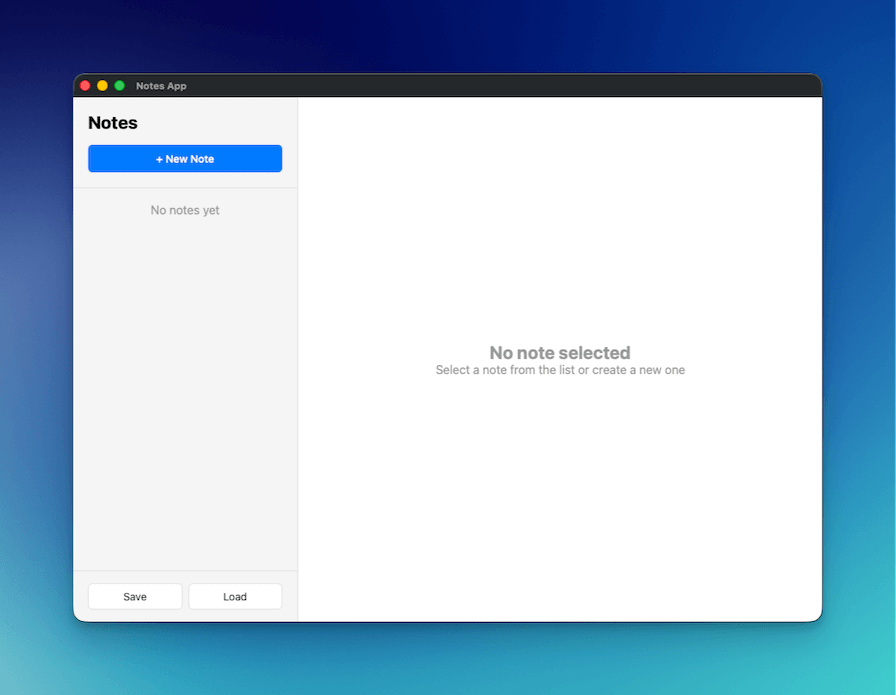
你将构建的内容
- 一个功能完整的笔记应用,支持创建、编辑和删除笔记
- 用于导入和导出笔记的原生文件保存和打开对话框
- 输入时使用防抖自动保存,减少不必要的更新
- 仿 Apple Notes 的专业双栏布局(侧边栏 + 编辑器)
你将学到的内容
- 在 Wails 中使用原生文件对话框(
SaveFileDialog、OpenFileDialog、InfoDialog) - 使用 JSON 文件持久化数据
- 实现防抖自动保存模式
- 使用现代 CSS 构建专业的桌面用户界面
- 将 Go 结构体正确序列化为 JSON
项目设置
1
创建新的 Wails 项目
bash
wails3 init -n notes-app -t vanilla
cd notes-app
2
创建 NotesService
在项目根目录中创建新文件notesservice.go:
go
package main
import (
"encoding/json"
"errors"
"os"
"time"
"github.com/wailsapp/wails/v3/pkg/application"
)
type Note struct {
ID string `json:"id"`
Title string `json:"title"`
Content string `json:"content"`
CreatedAt time.Time `json:"createdAt"`
UpdatedAt time.Time `json:"updatedAt"`
}
type NotesService struct {
notes []Note
}
func NewNotesService() *NotesService {
return &NotesService{
notes: make([]Note, 0),
}
}
// GetAll returns all notes
func (n *NotesService) GetAll() []Note {
return n.notes
}
// Create creates a new note
func (n *NotesService) Create(title, content string) Note {
note := Note{
ID: generateID(),
Title: title,
Content: content,
CreatedAt: time.Now(),
UpdatedAt: time.Now(),
}
n.notes = append(n.notes, note)
return note
}
// Update updates an existing note
func (n *NotesService) Update(id, title, content string) error {
for i := range n.notes {
if n.notes[i].ID == id {
n.notes[i].Title = title
n.notes[i].Content = content
n.notes[i].UpdatedAt = time.Now()
return nil
}
}
return errors.New("note not found")
}
// Delete deletes a note
func (n *NotesService) Delete(id string) error {
for i := range n.notes {
if n.notes[i].ID == id {
n.notes = append(n.notes[:i], n.notes[i+1:]...)
return nil
}
}
return errors.New("note not found")
}
// SaveToFile saves notes to a file
func (n *NotesService) SaveToFile() error {
path, err := application.Get().Dialog.SaveFile().
SetFilename("notes.json").
AddFilter("JSON Files", "*.json").
PromptForSingleSelection()
if err != nil {
return err
}
data, err := json.MarshalIndent(n.notes, "", " ")
if err != nil {
return err
}
if err := os.WriteFile(path, data, 0644); err != nil {
return err
}
application.Get().Dialog.Info().
SetTitle("Success").
SetMessage("Notes saved successfully!").
Show()
return nil
}
// LoadFromFile loads notes from a file
func (n *NotesService) LoadFromFile() error {
path, err := application.Get().Dialog.OpenFile().
AddFilter("JSON Files", "*.json").
PromptForSingleSelection()
if err != nil {
return err
}
data, err := os.ReadFile(path)
if err != nil {
return err
}
var notes []Note
if err := json.Unmarshal(data, ¬es); err != nil {
return err
}
n.notes = notes
application.Get().Dialog.Info().
SetTitle("Success").
SetMessage("Notes loaded successfully!").
Show()
return nil
}
func generateID() string {
return time.Now().Format("20060102150405")
}这里的工作原理:
- Note 结构体:使用小写 JSON 标签定义数据结构,以便正确序列化
- CRUD 操作:使用 GetAll、Create、Update 和 Delete 管理内存中的笔记
- 文件对话框:使用
application.Get().Dialog.SaveFile()和application.Get().Dialog.OpenFile()访问原生对话框 - 信息对话框:使用
application.Get().Dialog.Info()显示成功消息 - ID 生成:简单的基于时间戳的 ID 生成器
3
更新 main.go
替换main.go的内容:
go
package main

import (
	"embed"
	_ "embed"
	"log"

	"github.com/wailsapp/wails/v3/pkg/application"
)

//go:embed all:frontend/dist
var assets embed.FS

func main() {
	app := application.New(application.Options{
		Name:        "Notes App",
		Description: "A simple notes application",
		Services: []application.Service{
			application.NewService(NewNotesService()),
		},
		Assets: application.AssetOptions{
			Handler: application.AssetFileServerFS(assets),
		},
		Mac: application.MacOptions{
			ApplicationShouldTerminateAfterLastWindowClosed: true,
		},
	})

	app.Window.NewWithOptions(application.WebviewWindowOptions{
		Title:            "Notes App",
		Width:            1000,
		Height:           700,
		BackgroundColour: application.NewRGB(255, 255, 255),
		URL:              "/",
	})

	err := app.Run()
	if err != nil {
		log.Fatal(err)
	}
}
这里的工作原理:
- 将
NotesService注册到应用中 - 创建尺寸为(1000x700)的窗口,仿照 Apple Notes
- 设置正确的 macOS 行为,以便在最后一个窗口关闭时退出应用
4
创建 HTML 结构
替换frontend/index.html:
html
<!DOCTYPE html>
<html lang="en">
<head>
    <meta charset="UTF-8">
    <meta name="viewport" content="width=device-width, initial-scale=1.0">
    <title>Notes App</title>
    <link rel="stylesheet" href="./style.css">
</head>
<body>
    <div class="app">
        <!-- Sidebar -->
        <div class="sidebar">
            <div class="sidebar-header">
                <h1>Notes</h1>
                <button id="new-note-btn" class="btn-primary">+ New Note</button>
            </div>
            <div id="notes-list" class="notes-list"></div>
            <div class="sidebar-footer">
                <button id="save-btn" class="btn-secondary">Save</button>
                <button id="load-btn" class="btn-secondary">Load</button>
            </div>
        </div>

        <!-- Editor -->
        <div class="editor">
            <div id="empty-state" class="empty-state">
                <h2>No note selected</h2>
                <p>Select a note from the list or create a new one</p>
            </div>
            <div id="note-editor" class="note-editor" style="display: none;">
                <input type="text" id="note-title" placeholder="Note title" class="title-input">
                <textarea id="note-content" placeholder="Start typing..." class="content-input"></textarea>
                <div class="editor-footer">
                    <button id="delete-btn" class="btn-danger">Delete</button>
                    <span id="last-updated" class="last-updated"></span>
                </div>
            </div>
        </div>
    </div>

    <script src="/wails/runtime.js"></script>
    <script type="module" src="./src/main.js"></script>
</body>
</html>
这里的工作原理:
- 双栏布局:侧边栏用于显示笔记列表,主区域用于编辑
- 空状态:未选择笔记时显示
- Wails 运行时:必须在模块脚本之前加载
5
添加 CSS 样式
替换frontend/public/style.css:
css
* {
    margin: 0;
    padding: 0;
    box-sizing: border-box;
}

body {
    font-family: -apple-system, BlinkMacSystemFont, 'Segoe UI', Roboto, sans-serif;
    height: 100vh;
    overflow: hidden;
}

.app {
    display: flex;
    height: 100vh;
}

/* Sidebar */
.sidebar {
    width: 300px;
    background: #f5f5f5;
    border-right: 1px solid #e0e0e0;
    display: flex;
    flex-direction: column;
}

.sidebar-header {
    padding: 20px;
    border-bottom: 1px solid #e0e0e0;
}

.sidebar-header h1 {
    font-size: 24px;
    margin-bottom: 16px;
}

.notes-list {
    flex: 1;
    overflow-y: auto;
}

.note-item {
    padding: 16px 20px;
    border-bottom: 1px solid #e0e0e0;
    cursor: pointer;
    transition: background 0.2s;
}

.note-item:hover {
    background: #e8e8e8;
}

.note-item.active {
    background: #007aff;
    color: white;
}

.note-item h3 {
    font-size: 16px;
    margin-bottom: 4px;
}

.note-item p {
    font-size: 14px;
    opacity: 0.7;
    white-space: nowrap;
    overflow: hidden;
    text-overflow: ellipsis;
}

.sidebar-footer {
    padding: 16px 20px;
    border-top: 1px solid #e0e0e0;
    display: flex;
    gap: 8px;
}

/* Editor */
.editor {
    flex: 1;
    display: flex;
    flex-direction: column;
}

.empty-state {
    flex: 1;
    display: flex;
    flex-direction: column;
    align-items: center;
    justify-content: center;
    color: #999;
}

.note-editor {
    flex: 1;
    display: flex;
    flex-direction: column;
    padding: 20px;
}

.title-input {
    font-size: 32px;
    font-weight: bold;
    border: none;
    outline: none;
    margin-bottom: 16px;
    padding: 8px 0;
}

.content-input {
    flex: 1;
    font-size: 16px;
    border: none;
    outline: none;
    resize: none;
    font-family: inherit;
    line-height: 1.6;
}

.editor-footer {
    display: flex;
    justify-content: space-between;
    align-items: center;
    padding-top: 16px;
    border-top: 1px solid #e0e0e0;
}

.last-updated {
    font-size: 14px;
    color: #999;
}

/* Buttons */
.btn-primary {
    background: #007aff;
    color: white;
    border: none;
    padding: 10px 20px;
    border-radius: 6px;
    cursor: pointer;
    font-size: 14px;
    font-weight: 500;
    width: 100%;
}

.btn-primary:hover {
    background: #0056b3;
}

.btn-secondary {
    background: white;
    color: #333;
    border: 1px solid #e0e0e0;
    padding: 8px 16px;
    border-radius: 6px;
    cursor: pointer;
    font-size: 14px;
    flex: 1;
}

.btn-secondary:hover {
    background: #f5f5f5;
}

.btn-danger {
    background: #ff3b30;
    color: white;
    border: none;
    padding: 8px 16px;
    border-radius: 6px;
    cursor: pointer;
    font-size: 14px;
}

.btn-danger:hover {
    background: #cc0000;
}
这里的工作原理:
- 采用简洁排版和配色的 Apple 风格设计
- 使用 Flexbox 实现响应式侧边栏和编辑器布局
- 使用蓝色背景突出显示当前笔记
- 平滑的悬停过渡效果
6
实现 JavaScript 逻辑
替换frontend/src/main.js:
javascript
import { NotesService } from '../bindings/changeme'

let notes = []
let currentNote = null

// Load notes on startup
async function loadNotes() {
    notes = await NotesService.GetAll()
    renderNotesList()
}

// Render notes list
function renderNotesList() {
    const notesList = document.getElementById('notes-list')

    if (notes.length === 0) {
        notesList.innerHTML = '<div style="padding: 20px; text-align: center; color: #999;">No notes yet</div>'
        return
    }

    notesList.innerHTML = notes.map(note => `
        <div class="note-item ${currentNote?.id === note.id ? 'active' : ''}" data-id="${note.id}">
            <h3>${note.title || 'Untitled'}</h3>
            <p>${note.content || 'No content'}</p>
        </div>
    `).join('')

    // Add click handlers
    document.querySelectorAll('.note-item').forEach(item => {
        item.addEventListener('click', () => {
            const id = item.dataset.id
            selectNote(id)
        })
    })
}

// Select a note
function selectNote(id) {
    currentNote = notes.find(n => n.id === id)
    if (currentNote) {
        document.getElementById('empty-state').style.display = 'none'
        document.getElementById('note-editor').style.display = 'flex'
        document.getElementById('note-title').value = currentNote.title
        document.getElementById('note-content').value = currentNote.content
        document.getElementById('last-updated').textContent =
            `Last updated: ${new Date(currentNote.updatedAt).toLocaleString()}`
        renderNotesList()
    }
}

// Create new note
document.getElementById('new-note-btn').addEventListener('click', async () => {
    const note = await NotesService.Create('Untitled', '')
    notes.push(note)
    selectNote(note.id)
    // Focus the title input and select all text so user can immediately type
    const titleInput = document.getElementById('note-title')
    titleInput.focus()
    titleInput.select()
})

// Update note on input
let updateTimeout
function scheduleUpdate() {
    clearTimeout(updateTimeout)
    updateTimeout = setTimeout(async () => {
        if (currentNote) {
            const title = document.getElementById('note-title').value
            const content = document.getElementById('note-content').value

            await NotesService.Update(currentNote.id, title, content)

            // Update local copy
            const note = notes.find(n => n.id === currentNote.id)
            if (note) {
                note.title = title
                note.content = content
                note.updatedAt = new Date().toISOString()
            }

            renderNotesList()
            document.getElementById('last-updated').textContent =
                `Last updated: ${new Date().toLocaleString()}`
        }
    }, 500)
}

document.getElementById('note-title').addEventListener('input', scheduleUpdate)
document.getElementById('note-content').addEventListener('input', scheduleUpdate)

// Delete note
document.getElementById('delete-btn').addEventListener('click', async () => {
    if (!currentNote) return

    try {
        await NotesService.Delete(currentNote.id)
        notes = notes.filter(n => n.id !== currentNote.id)
        currentNote = null
        document.getElementById('empty-state').style.display = 'flex'
        document.getElementById('note-editor').style.display = 'none'
        renderNotesList()
    } catch (error) {
        console.error('Delete failed:', error)
    }
})

// Save to file
document.getElementById('save-btn').addEventListener('click', async () => {
    try {
        await NotesService.SaveToFile()
    } catch (error) {
        if (error) console.error('Save failed:', error)
    }
})

// Load from file
document.getElementById('load-btn').addEventListener('click', async () => {
    try {
        await NotesService.LoadFromFile()
        notes = await NotesService.GetAll()
        currentNote = null
        document.getElementById('empty-state').style.display = 'flex'
        document.getElementById('note-editor').style.display = 'none'
        renderNotesList()
    } catch (error) {
        if (error) console.error('Load failed:', error)
    }
})

// Initialize
loadNotes()
这里的工作原理:
- 自动保存:500毫秒的防抖可避免输入时过度调用后端
- 属性访问:使用与 Go JSON 标签匹配的小写属性名(
.id、.title) - 焦点管理:创建新笔记时自动聚焦并选中标题
- 无需确认即可删除:浏览器的
confirm()在 Wails WebView 中不起作用 - 文件操作:通过原生对话框保存和加载文件,并进行适当的错误处理
7
运行应用
bash
wails3 dev
应用启动后,你可以:
- 单击“+ New Note”创建笔记
- 编辑标题和内容(在500毫秒后自动保存)
- 单击侧边栏中的笔记进行切换
- 单击“Delete”删除当前笔记
- 单击“Save”将笔记导出为 JSON
- 单击“Load”导入之前保存的笔记
关键概念
文件和消息对话框
Wails v3 中没有包级对话框构造函数——每个对话框都通过app.Dialog管理器创建。在服务中,通过application.Get()获取应用(它会返回正在运行的*application.App):
go
// Correct — manager-based dialogs.
app := application.Get()
path, err := app.Dialog.SaveFile().
    SetFilename("notes.json").
    AddFilter("JSON Files", "*.json").
PromptForSingleSelection()对应的方法是用于消息对话框的app.Dialog.Info() / Question() / Warning() / Error(),以及用于文件对话框的app.Dialog.OpenFile() / SaveFile()(还有*WithOptions变体)。
JSON 标签映射
Go 结构体的 JSON 标签必须使用小写,以匹配 JavaScript 属性访问:
go
type Note struct {
    ID string `json:"id"` // Must be lowercase
}
javascript
// JavaScript accesses with lowercase
const noteId = note.id // Correct
const noteId = note.ID // Would be undefined
防抖自动保存
500毫秒的防抖可减少不必要的后端调用:
javascript
let updateTimeout
function scheduleUpdate() {
    clearTimeout(updateTimeout) // Cancel previous timer
    updateTimeout = setTimeout(async () => {
        // Only saves if user stops typing for 500ms
        await NotesService.Update(currentNote.id, title, content)
    }, 500)
}
后续步骤
- 添加分类或标签来整理笔记
- 实现搜索和筛选功能
- 使用所见即所得编辑器添加富文本编辑功能
- 将笔记同步到云存储
- 为常用操作添加键盘快捷键