

內容選單
為您的應用程式建立右鍵內容選單
問題
使用者預期右鍵選單會提供依情境而定的動作。不同元素需要不同的選單:
- 文字:剪下、複製、貼上
- 影像:儲存、複製、開啟
- 自訂元素:應用程式專屬動作
手動建立內容選單需要處理滑鼠事件、定位和平台差異。
Wails 解決方案
Wails 使用 CSS 屬性提供宣告式內容選單。您可以將選單與 HTML 元素建立關聯、傳遞資料並處理點擊事件,而且全都採用平台原生行為。
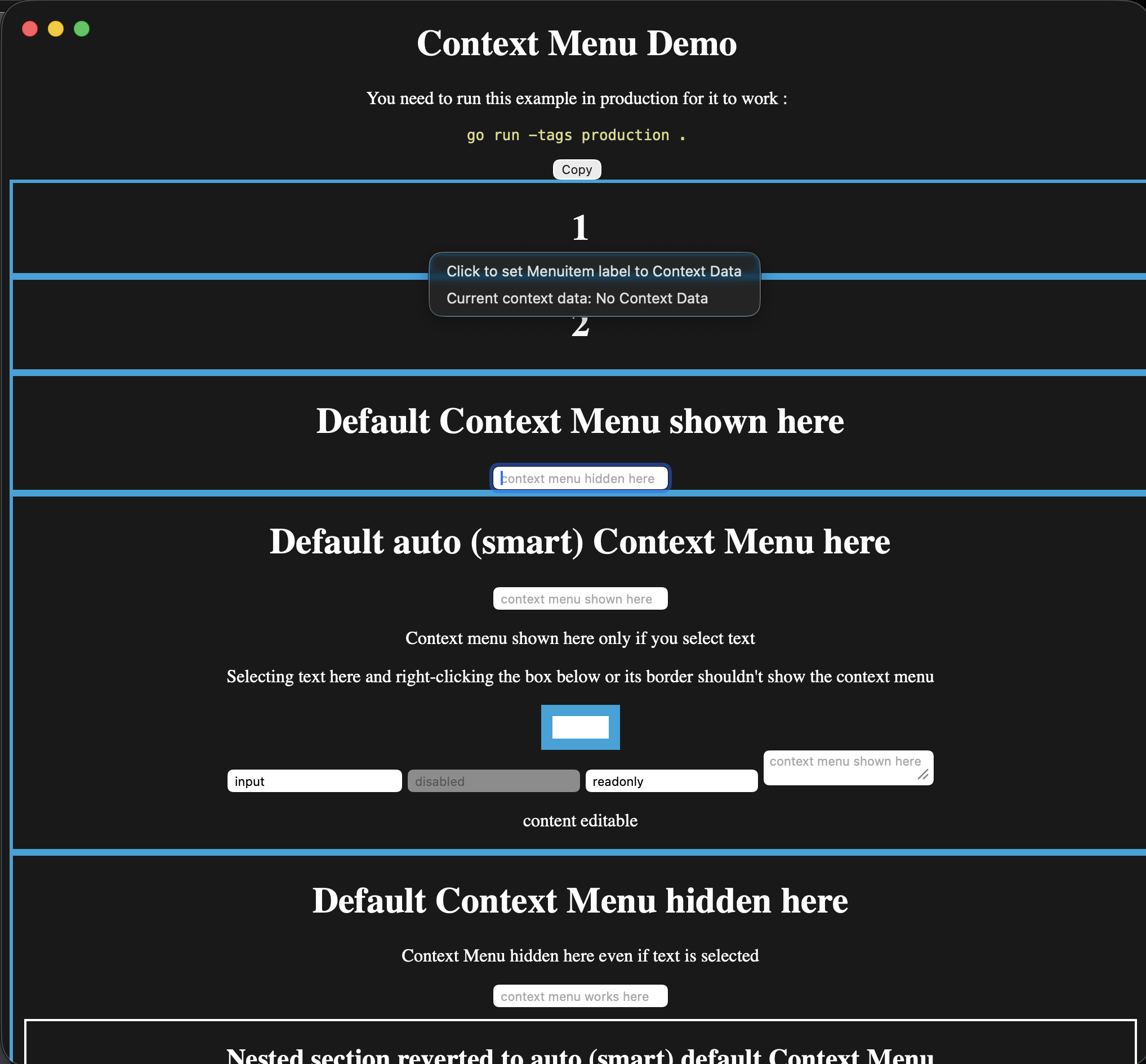
選單是平台原生選單,而開啟選單的元素仍是 WebView 的一部分。這張 macOS 擷取畫面使用下方範例的自訂內容選單註冊方式。
快速入門
Go 程式碼:
// Create context menu
contextMenu := app.ContextMenu.New()
contextMenu.Add("Cut").OnClick(handleCut)
contextMenu.Add("Copy").OnClick(handleCopy)
contextMenu.Add("Paste").OnClick(handlePaste)

// Register with ID
app.ContextMenu.Add("editor-menu", contextMenu)
HTML:
<textarea style="--custom-contextmenu: editor-menu">
    Right-click me!
</textarea>就這麼簡單!在文字區域按一下滑鼠右鍵,就會顯示您的自訂選單。
建立內容選單
基本內容選單
// Create menu
contextMenu := app.ContextMenu.New()

// Add items
contextMenu.Add("Cut").SetAccelerator("CmdOrCtrl+X").OnClick(func(ctx *application.Context) {
    // Handle cut
})

contextMenu.Add("Copy").SetAccelerator("CmdOrCtrl+C").OnClick(func(ctx *application.Context) {
    // Handle copy
})

contextMenu.Add("Paste").SetAccelerator("CmdOrCtrl+V").OnClick(func(ctx *application.Context) {
    // Handle paste
})

// Register with unique ID
app.ContextMenu.Add("text-menu", contextMenu)
選單 ID:必須是唯一值,用於將選單與 HTML 元素建立關聯。
使用子選單
contextMenu := app.ContextMenu.New()

// Add regular items
contextMenu.Add("Open").OnClick(handleOpen)
contextMenu.Add("Delete").OnClick(handleDelete)

contextMenu.AddSeparator()

// Add submenu
exportMenu := contextMenu.AddSubmenu("Export As")
exportMenu.Add("PNG").OnClick(exportPNG)
exportMenu.Add("JPEG").OnClick(exportJPEG)
exportMenu.Add("SVG").OnClick(exportSVG)

app.ContextMenu.Add("image-menu", contextMenu)
使用核取方塊和選項群組
contextMenu := app.ContextMenu.New()

// Checkbox
contextMenu.AddCheckbox("Show Grid", true).OnClick(func(ctx *application.Context) {
    showGrid := ctx.ClickedMenuItem().Checked()
    // Toggle grid
})

contextMenu.AddSeparator()

// Radio group
contextMenu.AddRadio("Small", false).OnClick(handleSize)
contextMenu.AddRadio("Medium", true).OnClick(handleSize)
contextMenu.AddRadio("Large", false).OnClick(handleSize)

app.ContextMenu.Add("view-menu", contextMenu)如需瞭解所有選單項目類型,請參閱選單參考。
與 HTML 元素建立關聯
使用 CSS 自訂屬性附加內容選單:
基本關聯
<div style="--custom-contextmenu: menu-id">
    Right-click me!
</div>
CSS 屬性:--custom-contextmenu: <menu-id>
使用情境資料
將資料從 HTML 傳遞至 Go:
<div style="--custom-contextmenu: file-menu; --custom-contextmenu-data: file-123">
    Right-click this file
</div>
Go 處理常式:
contextMenu := app.ContextMenu.New()
contextMenu.Add("Open").OnClick(func(ctx *application.Context) {
    fileID := ctx.ContextMenuData()  // "file-123"
    openFile(fileID)
})

app.ContextMenu.Add("file-menu", contextMenu)
CSS 屬性:
--custom-contextmenu: <menu-id>-要顯示的選單--custom-contextmenu-data: <data>-要傳遞給處理常式的資料
動態資料
在 JavaScript 中動態產生資料:
<div id="file-item" style="--custom-contextmenu: file-menu">
    File.txt
</div>

<script>
// Set data dynamically
const fileItem = document.getElementById('file-item')
fileItem.style.setProperty('--custom-contextmenu-data', 'file-' + fileId)
</script>
多個元素共用同一個選單
<div class="file-item" style="--custom-contextmenu: file-menu; --custom-contextmenu-data: file-1">
    Document.pdf
</div>

<div class="file-item" style="--custom-contextmenu: file-menu; --custom-contextmenu-data: file-2">
    Image.png
</div>

<div class="file-item" style="--custom-contextmenu: file-menu; --custom-contextmenu-data: file-3">
    Video.mp4
</div>
共用一個選單,但每個元素使用不同的資料。
情境資料
存取情境資料
contextMenu.Add("Process").OnClick(func(ctx *application.Context) {
    data := ctx.ContextMenuData()  // Get data from HTML

    // Use the data
    processItem(data)
})資料類型:一律為string。請視需要進行剖析。
傳遞複雜資料
複雜資料請使用 JSON:
<div style="--custom-contextmenu: item-menu; --custom-contextmenu-data: {"id":123,"type":"image"}">
Image.png
</div>Go 處理常式:
import "encoding/json"

type ItemData struct {
    ID   int    `json:"id"`
    Type string `json:"type"`
}

contextMenu.Add("Process").OnClick(func(ctx *application.Context) {
    dataStr := ctx.ContextMenuData()

    var data ItemData
    if err := json.Unmarshal([]byte(dataStr), &data); err != nil {
        log.Printf("Invalid data: %v", err)
        return
    }

    processItem(data.ID, data.Type)
})驗證範例
contextMenu.Add("Delete").OnClick(func(ctx *application.Context) {
    fileID := ctx.ContextMenuData()

    // Validate
    if !isValidFileID(fileID) {
        log.Printf("Invalid file ID: %s", fileID)
        return
    }

    // Check permissions
    if !canDeleteFile(fileID) {
        showError("Permission denied")
        return
    }

    // Safe to proceed
    deleteFile(fileID)
})
預設內容選單
WebView 為標準操作(複製、貼上、檢查)提供內建內容選單。請使用--default-contextmenu控制此選單:
隱藏預設選單
<div style="--default-contextmenu: hide">
    No default menu here
</div>使用情境:不適合顯示預設選單的自訂 UI 元素。
顯示預設選單
<div style="--default-contextmenu: show">
    Default menu always shown
</div>使用情境:文字區域、輸入欄位、可編輯內容。
自動(智慧)模式
<div style="--default-contextmenu: auto">
    Smart context menu
</div>預設行為。在下列情況顯示預設選單:
- 已選取文字
- 位於文字輸入欄位中
- 位於可編輯內容中(
contenteditable)
其他情況則隱藏預設選單。
結合自訂選單與預設選單
<!-- Custom menu + default menu -->
<textarea style="--custom-contextmenu: editor-menu; --default-contextmenu: show">
    Both menus available
</textarea>
行為:
- 先顯示自訂選單
- 若自訂選單為空或找不到,則顯示預設選單
- 兩者可以並存(視平台而定)
動態內容選單
根據應用程式狀態更新選單:
啟用/停用項目
var cutMenuItem *application.MenuItem
var copyMenuItem *application.MenuItem

func createContextMenu() {
    contextMenu := app.ContextMenu.New()

    cutMenuItem = contextMenu.Add("Cut")
    cutMenuItem.SetEnabled(false)  // Initially disabled
    cutMenuItem.OnClick(handleCut)

    copyMenuItem = contextMenu.Add("Copy")
    copyMenuItem.SetEnabled(false)
    copyMenuItem.OnClick(handleCopy)

    app.ContextMenu.Add("editor-menu", contextMenu)
}

func onSelectionChanged(hasSelection bool) {
    cutMenuItem.SetEnabled(hasSelection)
    copyMenuItem.SetEnabled(hasSelection)
    contextMenu.Update()  // Important!
}變更標籤
playMenuItem := contextMenu.Add("Play")

playMenuItem.OnClick(func(ctx *application.Context) {
    if isPlaying {
        playMenuItem.SetLabel("Pause")
    } else {
        playMenuItem.SetLabel("Play")
    }
    contextMenu.Update()
})
重建選單
若要進行重大變更,請重建整個選單:
func rebuildContextMenu(fileType string) {
    contextMenu := app.ContextMenu.New()

    // Common items
    contextMenu.Add("Open").OnClick(handleOpen)
    contextMenu.Add("Delete").OnClick(handleDelete)

    contextMenu.AddSeparator()

    // Type-specific items
    switch fileType {
    case "image":
        contextMenu.Add("Edit Image").OnClick(editImage)
        contextMenu.Add("Set as Wallpaper").OnClick(setWallpaper)
    case "video":
        contextMenu.Add("Play").OnClick(playVideo)
        contextMenu.Add("Extract Audio").OnClick(extractAudio)
    case "document":
        contextMenu.Add("Print").OnClick(printDocument)
        contextMenu.Add("Export PDF").OnClick(exportPDF)
    }

    app.ContextMenu.Add("file-menu", contextMenu)
}
平台行為
快顯選單是平台原生元件:
原生 macOS 快顯選單:
- 系統動畫與轉場效果
- 按右鍵 = Control+按一下(自動)
- 配合系統外觀(淺色/深色)
- 預設選單中的標準文字操作
- 長選單採用原生捲動功能
macOS 慣例:
- 選單項目採用句首字母大寫格式
- 會開啟對話方塊的項目使用刪節號(…)
- 常用快速鍵:⌘C(複製)、⌘V(貼上)
原生 Windows 快顯選單:
- Windows 原生樣式
- 配合 Windows 佈景主題
- 預設選單中的標準 Windows 操作
- 支援觸控與手寫筆輸入
Windows 慣例:
- 選單項目採用標題式大小寫
- 會開啟對話方塊的項目使用刪節號(…)
- 常用快速鍵:Ctrl+C(複製)、Ctrl+V(貼上)
桌面環境整合:
- 配合桌面佈景主題(GTK、Qt 等)
- 按右鍵的行為依循系統設定
- 預設選單內容會因環境而異
- 位置配置依循桌面環境慣例
Linux 注意事項:
- 在目標桌面環境上測試
- GTK 與 Qt 的行為不同
- 部分桌面環境會自訂快顯選單
完整範例
Go 程式碼:
package main

import (
    "encoding/json"
    "log"
    "github.com/wailsapp/wails/v3/pkg/application"
)

type FileData struct {
    ID   string `json:"id"`
    Type string `json:"type"`
    Name string `json:"name"`
}

func main() {
    app := application.New(application.Options{
        Name: "Context Menu Demo",
    })

    // Create file context menu
    fileMenu := createFileMenu(app)
    app.ContextMenu.Add("file-menu", fileMenu)

    // Create image context menu
    imageMenu := createImageMenu(app)
    app.ContextMenu.Add("image-menu", imageMenu)

    // Create text context menu
    textMenu := createTextMenu(app)
    app.ContextMenu.Add("text-menu", textMenu)

    app.Window.New()
    app.Run()
}

func createFileMenu(app *application.App) *application.ContextMenu {
    menu := app.ContextMenu.New()

    menu.Add("Open").OnClick(func(ctx *application.Context) {
        data := parseFileData(ctx.ContextMenuData())
        openFile(data.ID)
    })

    menu.Add("Rename").OnClick(func(ctx *application.Context) {
        data := parseFileData(ctx.ContextMenuData())
        renameFile(data.ID)
    })

    menu.AddSeparator()

    menu.Add("Delete").OnClick(func(ctx *application.Context) {
        data := parseFileData(ctx.ContextMenuData())
        deleteFile(data.ID)
    })

    return menu
}

func createImageMenu(app *application.App) *application.ContextMenu {
    menu := app.ContextMenu.New()

    menu.Add("View").OnClick(func(ctx *application.Context) {
        data := parseFileData(ctx.ContextMenuData())
        viewImage(data.ID)
    })

    menu.Add("Edit").OnClick(func(ctx *application.Context) {
        data := parseFileData(ctx.ContextMenuData())
        editImage(data.ID)
    })

    menu.AddSeparator()

    exportMenu := menu.AddSubmenu("Export As")
    exportMenu.Add("PNG").OnClick(exportPNG)
    exportMenu.Add("JPEG").OnClick(exportJPEG)
    exportMenu.Add("WebP").OnClick(exportWebP)

    return menu
}

func createTextMenu(app *application.App) *application.ContextMenu {
    menu := app.ContextMenu.New()

    menu.Add("Cut").SetAccelerator("CmdOrCtrl+X").OnClick(handleCut)
    menu.Add("Copy").SetAccelerator("CmdOrCtrl+C").OnClick(handleCopy)
    menu.Add("Paste").SetAccelerator("CmdOrCtrl+V").OnClick(handlePaste)

    return menu
}

func parseFileData(dataStr string) FileData {
    var data FileData
    if err := json.Unmarshal([]byte(dataStr), &data); err != nil {
        log.Printf("Invalid file data: %v", err)
    }
    return data
}

// Handler implementations...
func openFile(id string) { /* ... */ }
func renameFile(id string) { /* ... */ }
func deleteFile(id string) { /* ... */ }
func viewImage(id string) { /* ... */ }
func editImage(id string) { /* ... */ }
func exportPNG(ctx *application.Context) { /* ... */ }
func exportJPEG(ctx *application.Context) { /* ... */ }
func exportWebP(ctx *application.Context) { /* ... */ }
func handleCut(ctx *application.Context) { /* ... */ }
func handleCopy(ctx *application.Context) { /* ... */ }
func handlePaste(ctx *application.Context) { /* ... */ }
HTML:
<!DOCTYPE html>
<html>
<head>
<style>
.file-item {
padding: 10px;
margin: 5px;
border: 1px solid #ccc;
cursor: pointer;
}
.file-item:hover {
background: #f0f0f0;
}
textarea {
width: 100%;
height: 200px;
}
</style>
</head>
<body>
<h2>Files</h2>
<!-- Regular file -->
<div class="file-item"
style="--custom-contextmenu: file-menu;
--custom-contextmenu-data: {"id":"file-1","type":"document","name":"Report.pdf"}">
📄 Report.pdf
</div>
<!-- Image file -->
<div class="file-item"
style="--custom-contextmenu: image-menu;
--custom-contextmenu-data: {"id":"file-2","type":"image","name":"Photo.jpg"}">
🖼️ Photo.jpg
</div>
<h2>Text Editor</h2>
<!-- Text area with custom menu + default menu -->
<textarea
style="--custom-contextmenu: text-menu; --default-contextmenu: show"
placeholder="Type here, then right-click...">
</textarea>
<h2>No Context Menu</h2>
<!-- Disable default menu -->
<div style="--default-contextmenu: hide; padding: 20px; border: 1px solid #ccc;">
Right-click here - no menu appears
</div>
</body>
</html>最佳實務
✅ 建議做法
- 讓選單聚焦於必要功能 — 僅包含與該元素相關的動作
- 驗證情境資料 — 將其視為不受信任的輸入
- 使用明確的標籤 — 使用「刪除檔案」,不要只寫「刪除」
- 呼叫 menu.Update() — 變更選單狀態後
- 在所有平台上測試 — 行為會因平台而異
- 提供鍵盤快速鍵 — 用於常見操作
- 將相關項目分組 — 使用分隔線
❌ 請勿這樣做
- 不要信任情境資料 — 一律加以驗證
- 不要讓選單過長 — 最多 7-10 個項目
- 不要忘記呼叫 menu.Update() — 否則選單無法正常運作
- 不要巢狀過深 — 最多 2 層
- 不要使用術語 — 讓標籤淺顯易懂
- 不要阻塞處理常式 — 讓其快速完成
疑難排解
快顯選單未出現
可能的原因:
- 選單 ID 不相符
- CSS 屬性拼寫錯誤
- 執行階段尚未初始化
解決方法:
// Check menu is registered
app.ContextMenu.Add("my-menu", contextMenu)<!-- Check ID matches -->
<div style="--custom-contextmenu: my-menu">未收到情境資料
可能的原因:
- 未設定 CSS 屬性
- 資料包含特殊字元
解決方法:
<!-- Escape quotes in JSON -->
<div style="--custom-contextmenu-data: {"id":123}">或者使用 JavaScript:
element.style.setProperty('--custom-contextmenu-data', JSON.stringify(data))選單項目沒有回應
原因:啟用後忘記呼叫menu.Update()
解決方法:
menuItem.SetEnabled(true)
contextMenu.Update()  // Add this!
後續步驟
選單項目類型與屬性的完整參考資料。
建立應用程式選單列。
加入系統匣/選單列整合。
常見的選單模式與最佳實務。